Moderate reported posts
This is for communities that use Approvals & Review. If you can’t find it in your app, your community hasn’t switched it on.
When someone reports a post in the part you lead, such as an announcement, event or prayer request, it comes to you to decide. You never see who reported it.
-
Open Moderation. On Lead, choose Moderation. When something is waiting, the row also says how many reports there are, for example "1 report to review".
-
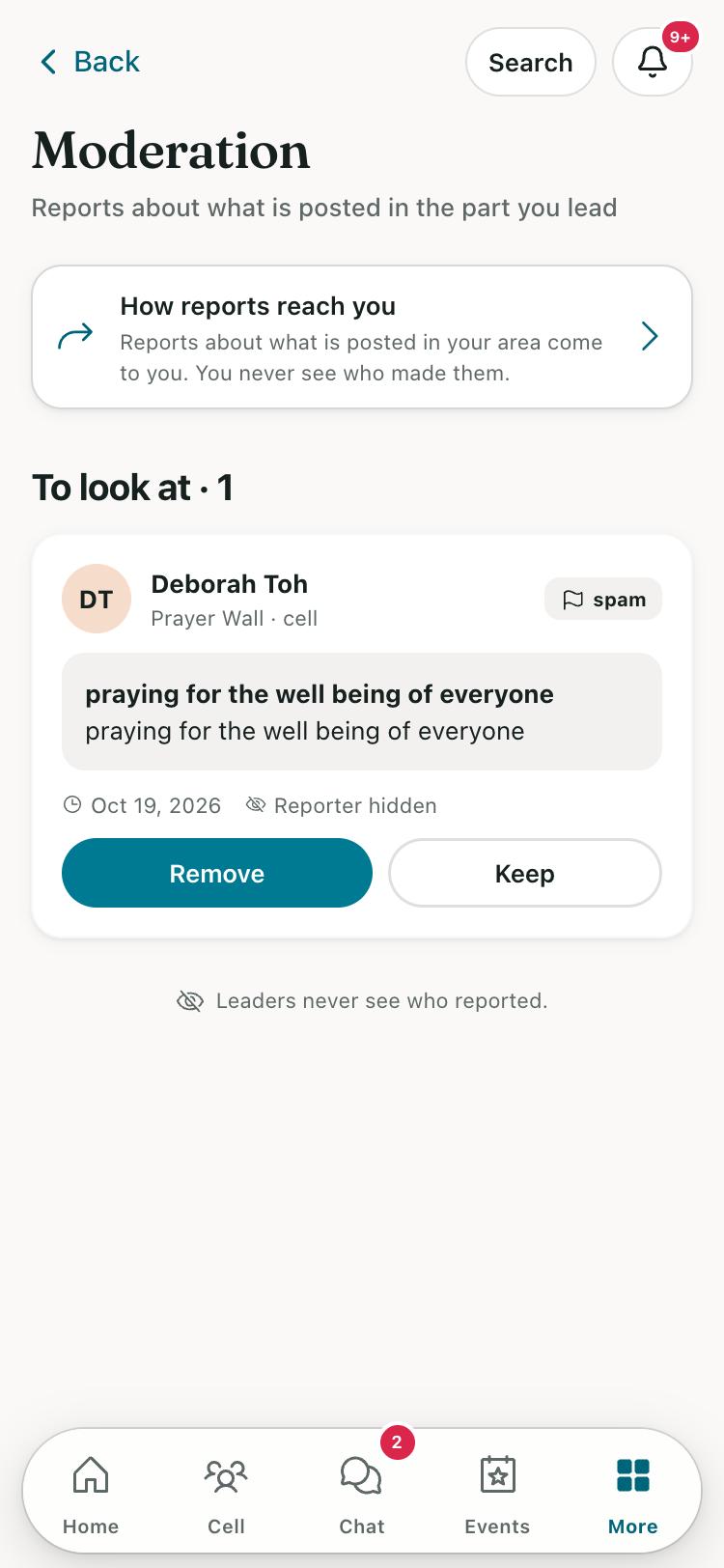
Look at the report. Under To look at, each card shows who posted it, why it was reported and how many people reported it. If it may be upsetting, the content stays hidden until you choose Show content.
-
Keep it. If the post is fine, choose Keep. The report is closed.
-
Or remove it. Choose Remove. You can add a line under Why (optional), then choose Remove it. The post comes down for everyone and the person who posted it is told.
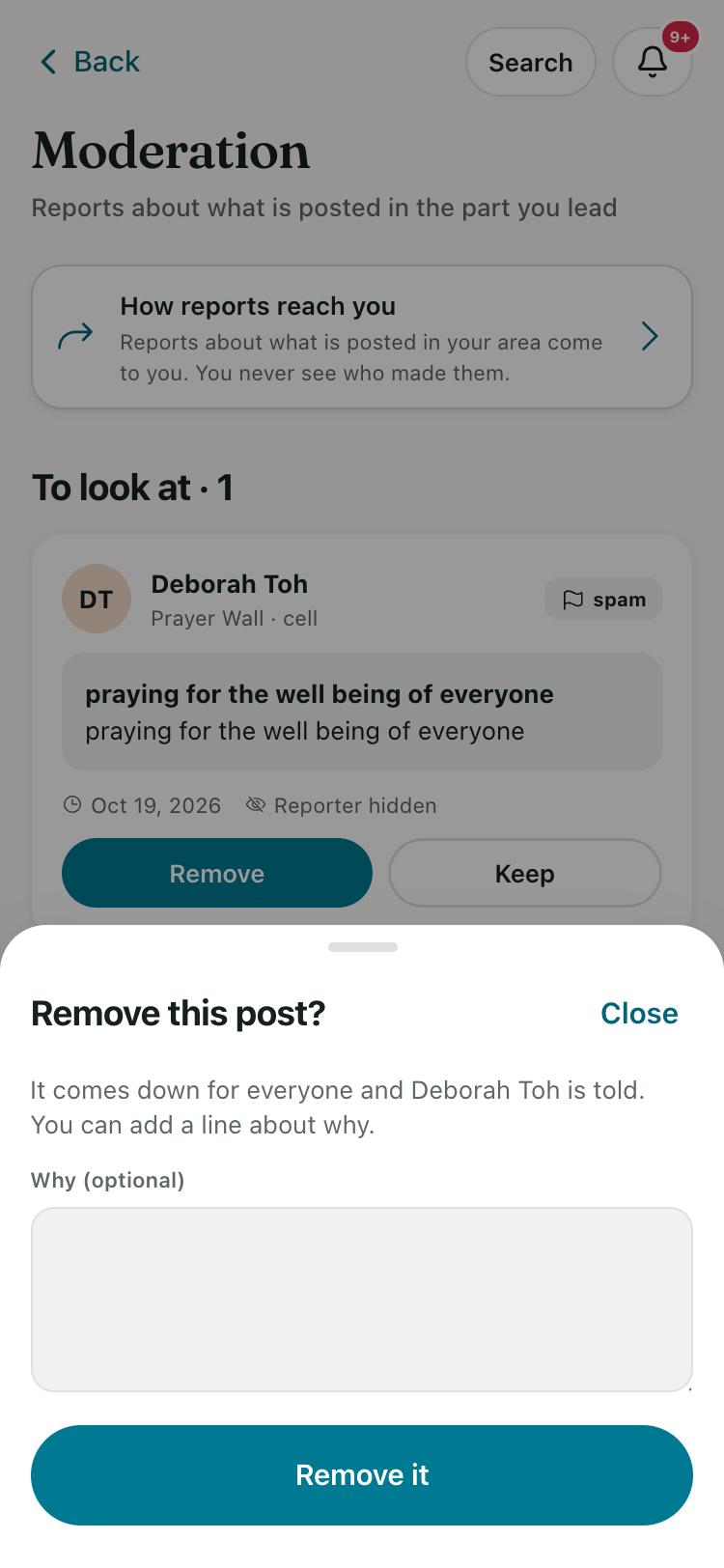
Every decision is recorded with your reason. To see how reports reach you, choose How reports reach you at the top of the page.
From For you now
The For you now row such as "1 report to review", with "Reported posts in the part you lead" under it, opens the Content Moderation page instead. It lists the same reports, with Keep Content and Remove & Hide.
If something looks different
"No reports" Nothing has been reported in the part you lead. Thanks for keeping it a kind place.
A reported message, chat or Moment isn't here. Reports about messages, chats, Moments and people go to Reports on Lead instead. See Escalate a report to the right person.
A post in a group's own feed isn't here. Group feed posts are looked after inside the group itself.
"Moderation is for leaders." Your role doesn't include moderating posts. Ask your community's organisers.
Was this helpful?
Still stuck? Ask the Belonging team: open Help in the app (on a phone it’s under More; on a computer, click your name at the bottom of the menu) and choose Ask the app team. The answer comes to your email.